
Silk Mobile
Table of Contents (Homepage)
- Overview
- Setting Up
- Getting Started
- How To
- Connecting Devices And Emulators
- Preparing Applications For Testing
- Managing Applications
- Recording Tests
- Working With Test Commands
- Adding Commands To Your Scripts
- Object Commands
- Click
- ClickCoordinate
- ClickIn
- ClickOffset
- Drag
- ElementGetProperty
- ElementGetTableRowsCount
- ElementListPick
- ElementListSelect
- ElementListVisible
- ElementScrollToTableRow
- ElementSendText
- ElementSetProperty
- ElementSwipe
- ElementSwipeWhileNotFound
- GetAllValues
- GetElementCount
- GetElementCountIn
- GetTextIn
- IsElementBlank
- IsElementFound
- IsFoundIn
- LongClick
- RunNativeAPICall
- SendWhileNotFound
- VerifyElementFound
- VerifyElementNotFound
- VerifyIn
- WaitForElement
- WaitForElementToVanish
- GetCoordinateColor
- DragDrop
- Application Commands
- Device Commands
- Web (Hybrid) Specific Commands
- Utilities Commands
- Monitoring Commands
- Configuration Commands
- ExtractLanguageFiles
- SetDefaultClickDownTime
- SetDefaultTimeOut
- SetDefaultWebView
- SetDragStartDelay
- SetInKeyDelay
- SetKeyToKeyDelay
- SetLanguage
- SetLanguagePropertiesFile
- SetShowImageInReport
- SetShowPassImageInReport
- SetShowReport
- SetSpeed
- SetThrowExceptionOnFail
- SetWebAutoScroll
- StartStepsGroup
- StopStepsGroup
- TextFilter
- Miscellaneous Commands
- Controlling Element Identification Rules
- Editing Test Objects
- Executing Test Scripts
- Report Of Executed Test
- Working From Code Environment
- Continuous Integration
- Layout Verification Tests
- Use Device Vitals Monitors
- Troubleshooting
- Terminology
Creating Your First Test On iOS Device
Follow the steps below:
Step 1: To start recording a script on an iOS mobile device with the Native recorder, you need to:
-
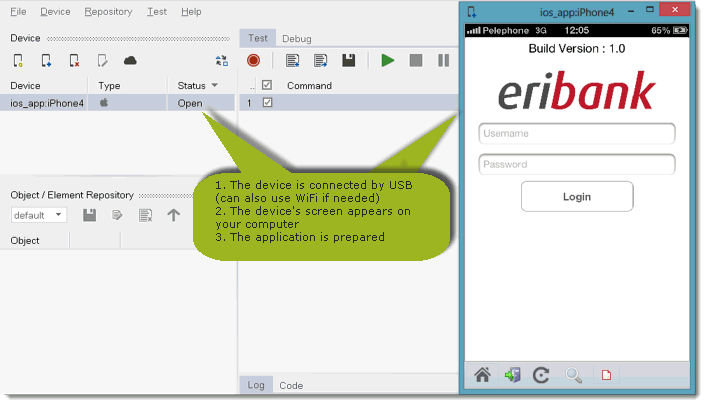
Connect your mobile device via USB to your computer (for device connectivity instructions please follow Connect Device - Option B )
-
Have the application instrumented and installed on the device (see Native Application Instrumentation process for iOS).
-
In this example we will use one of our demo instrumented applications for iOS called EriBank which can be downloaded from http://supportline.microfocus.com/
-
We begin the example with the application launched on the device. you can launch the application using the 'Launch' command
-
iOS9 - When the iOSBridge app or the Simple Browser are started for the first time on a iOS 9 device, the user is presented with a dialog about "Untrusted Developer". In order to be able to launch the iOSBridge or Simple Browser, the user needs to do the following:
-
Go to the "Setting" application
-
Select the "General" section
-
Then select "Profile"
-
Choose "Experitest Ltd" item and click "Trust".
-
Step 2: Start the recording session
-
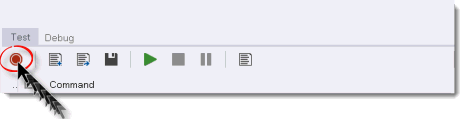
In Silk Mobile go to the "Test" tab and click on the "Record" button.
-
Choose the device you wish to record and choose the tested application name (for Native Recording).
Note: The recommended way of recording is ' Dynamic Recording ' which can be done by ticking the 'Use dynamic' button. we will use the ' Native Recording ' in order to cover object oriented features in the examples.
Step 3: Go to the device screen appearing on your computer screen (with the app launched on it), and do the exact sequence of actions you want in the test.
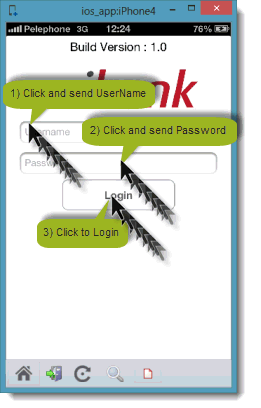
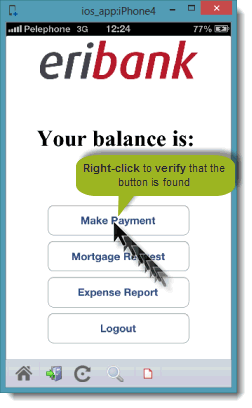
In this example, I want to run a test in the "eriBank" application that logs into my bank account, so I'll do the following sequence of actions:
-
Click on the "Username" field, enter 'company'
-
Click on "Password", enter 'company'
-
Click on the "Login" button
-
Right-click on the "Make Payment" button to verify that it is found.
-
Note: Things worthwhile doing when recording:
-
Click the center of the image/icon/link
-
Record slowly
-
Event recording is possible thru the reflection window only.

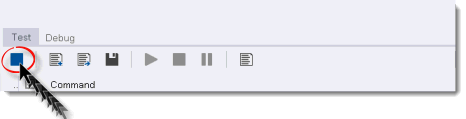
Step 4: Return to Silk Mobile and click on the Stop Recording button.
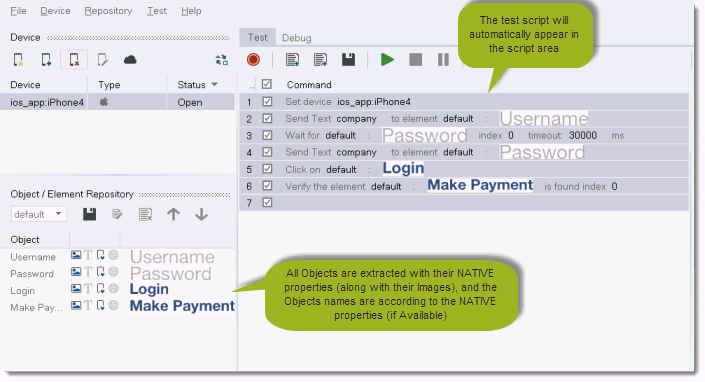
Step 5: You will see a progress bar indicating that the recorded data is being analyzed, and the test script will then appear in the script area.
Note: The script you recorded can later on be edited. (please refer to the "Edit Test Commands" & "Edit Test Objects" section in the guide for instructions on how to edit).
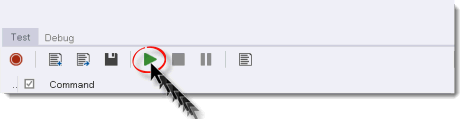
Step 6: Click the " Play " button to run the script:
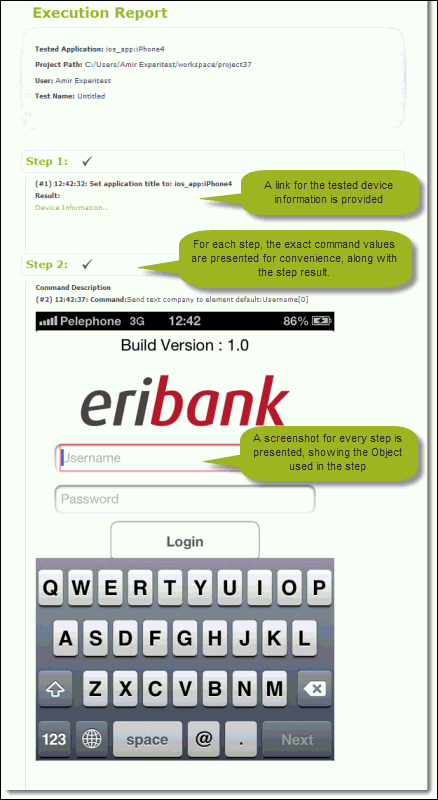
Step 7: Once the test has been executed, you will receive a report indicating whether each test step was executed successfully or not, including a screenshot of the tested application in run time.
You can run the test script from UFT as well.